
Showing posts with label Android. Show all posts
Showing posts with label Android. Show all posts
Tuesday, 25 February 2014
Samsung Galaxy S5

Saturday, 1 February 2014
samsung Galaxy Note 3 Neo

Galaxy Note 3 Neo sports a 5.5-inch Super AMOLED display with a resolution of 720x1280 pixels. The non-LTE (4G) version of the phone is powered by a 1.6GHz quad-core processor (Samsung has not mentioned the name of the chip though).
The device, which has already made an appearance on Samsung's Polish website, will be available globally in three colour variants - black, white and green in February.
The LTE version is powered by a hexa-core processor, in line with earlier rumours. It's powered by an A15 1.7GHz A15 dual-core plus 1.3GHz A7 quad-core chip.
The phone has 2GB of RAM and 16GB internal storage expandable up to 64GB via microSD card. The phone is backed by a 3100mAh battery.
The Galaxy Note 3 Neo sports an 8MP rear camera with BSI sensor, auto focus, smart stabilization, and LED flash (with high CRI), and a 2MP front facing camera with BSI sensor.
The phone runs android 4.3 Jelly Bean with Samsung's TouchWiz UI layer on top. It packs a stylus (S-Pen) complete with most software features of Note 3 including Air Command, Easy Clip, Multi Window and My Magazine.
In terms of connectivity options, the phone supports Gigabit WiFi (802.11ac), NFC, Bluetooth 4.0, GPS, and Infrared blaster port.
Thursday, 30 January 2014

Wednesday, 29 January 2014
Karbonn Titanium X specifications
 Karbonn
Titanium X
smartphone
with
5.00-inch
1080x1920
display
Karbonn
Titanium X
smartphone
with
5.00-inch
1080x1920
display powered by 1.5GHz processor alongside
1GB RAM and
13-megapixel rear camera.

Tuesday, 21 January 2014
LG G Flex announced for 20 European countries in February

LG, soon after announcing that its curved G Flex smartphone will hit the US market by April, has now announced the release of the device in 20 European markets.
Sunday, 19 January 2014
Samsung Galaxy Core Advance Android Smartphone
 Samsung Galaxy Core Advance Android Smartphone Announced December 2013,
weight 145g, 4.7” TFT capacitive touchscreen , 5.0 MP Camera, Bluetooth
4.0,Wi-Fi
Samsung Galaxy Core Advance Android Smartphone Announced December 2013,
weight 145g, 4.7” TFT capacitive touchscreen , 5.0 MP Camera, Bluetooth
4.0,Wi-Fi
Specification & Features
Micromax Canvas Blaze MT500 specification
 Micromax
Canvas Blaze MT500
smartphone
with
5.00-inch
display
powered by 1GHz processor
alongside 768MB RAM
and 8-Ultrapixel rear camera.
Micromax
Canvas Blaze MT500
smartphone
with
5.00-inch
display
powered by 1GHz processor
alongside 768MB RAM
and 8-Ultrapixel rear camera. Saturday, 18 January 2014
Micromax MAd A94
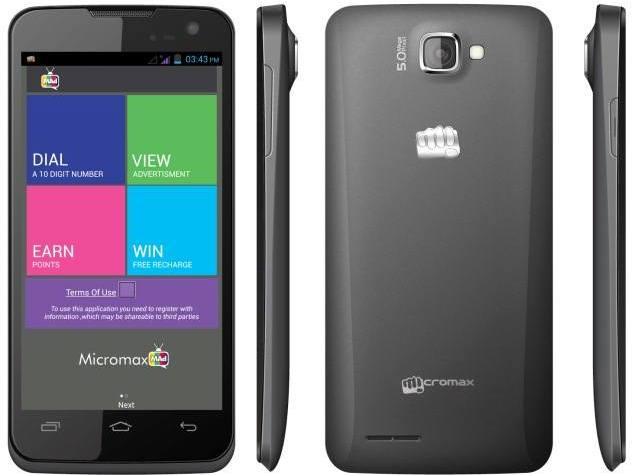
Micromax
Canvas MAd A94
smartphone
with
4.50-inch
480x854
display
powered by 1.2GHz processor
alongside 512MB RAM
and 5-megapixel rear camera.
Micromax
Canvas MAd A94 detailed specifications
Lenovo IdeaPad A10

Lenovo launches Android-based dual-mode notebook IdeaPad A10 in India at Rs 19,990
New Delhi: Lenovo has announced the launch of the IdeaPad A10,
its first Android-based dual-mode notebook. Priced at Rs 19,990, the A10
comes with 10-point multitouch and flips 300 degrees.
The A10 weighs approximately 1 kg, and features a 10.1-inch display. The device enables users to instantly switch between two modes - Laptop and Stand.
The Lenovo IdeaPad A10 is powered by a quad-core ARM processor and has a 0.3 megapixel webcam.

Tablet Buyer’s Guide
 The
beautiful screens, portability and simplicity of tablets mean they’re great to
use and have become incredibly popular.
The
beautiful screens, portability and simplicity of tablets mean they’re great to
use and have become incredibly popular. Samsung Galaxy S4 tips

Also see (iOs 7 tips features)
How get the WatchON controller on your notifications bar
The WatchON app of the Galaxy S4 is a nice idea – an app that lets you control your TV with your phone – but if it’s not within a finger’s reach it’s a bit useless.
You can place the virtual WatchON remote control in your drop-down notifications bar if you like, from within the WatchON app. To do this, open up the app and tap on the menu soft key (on the phone, not the app.) Then tap Advanced, and from within this sub-menu you’ll see a tick box that lets you place the remote in the notifications menu.
It takes up a whole lot of space, but it’s worth using if you want your Galaxy S4 to become your main TV remote.
Altering the tone of your call signal
Consistent with the Galaxy S4’s approach of letting you fiddly with just about every part of the phone, you can alter the tone of phone calls. Your options are – soft, clear and an adapted sound. This gives you a mini hearing test to ascertain what will sound best to your ears. It’s clever stuff.
To access these options, head to the Settings menu and tap the Call menu that sits under the My Device tab. Scroll down a bit and you’ll find the Personalise Call Sound sub-menu.
Turning noise reduction on and off
You can also choose whether or not to use noise reduction – which affects the sound quality at the other end of the line, not on your side.
The Samsung Galaxy S4 has dual microphones, letting it just what sound on the line is ambient noise and what is your voice. There are few reasons to turn noise reduction off, but we have heard reports that bugs can cause it to ruin a phone call. If people are complaining about call quality, try turning it off.
To get to the NR switch, go to the Settings menu and head to the Call option under the My Device tab. Here you’ll see a ‘Noise Reduction’ tick box.
Save battery and mobile data with the Wi-Fi Timer
A very neat little efficiency-increasing feature is the Wi-Fi timer. This lets you switch Wi-Fi on and off at certain times of the day.
The most obvious use for this is to turn Wi-Fi on during the hours you’re at home. It’ll mean the Galaxy S4 will automatically connect to a Wi-Fi network during these hours, saving mobile data, but otherwise won’t.
Switching Wi-Fi off during the hours you have no plans to use a Wi-Fi network saves battery, as it stops the phone from scanning for available networks. And if you’re in a city, there’ll be a whole lot of them, more-or-less everywhere.
You'll find the Wi-Fi Timer by going to Settings, hitting the Wi-Fi menu option (not the on-off slider) under the Connections tab, pressing the Menu soft key on your Galaxy S4 and hitting Advanced. Yep, it's a pretty well-hidden feature. You then set the hours you want the Wi-Fi timer to switch on Wi-Fi.
How get the WatchON controller on your notifications bar
The WatchON app of the Galaxy S4 is a nice idea – an app that lets you control your TV with your phone – but if it’s not within a finger’s reach it’s a bit useless.
You can place the virtual WatchON remote control in your drop-down notifications bar if you like, from within the WatchON app. To do this, open up the app and tap on the menu soft key (on the phone, not the app.) Then tap Advanced, and from within this sub-menu you’ll see a tick box that lets you place the remote in the notifications menu.
It takes up a whole lot of space, but it’s worth using if you want your Galaxy S4 to become your main TV remote.
Altering the tone of your call signal
Consistent with the Galaxy S4’s approach of letting you fiddly with just about every part of the phone, you can alter the tone of phone calls. Your options are – soft, clear and an adapted sound. This gives you a mini hearing test to ascertain what will sound best to your ears. It’s clever stuff.
To access these options, head to the Settings menu and tap the Call menu that sits under the My Device tab. Scroll down a bit and you’ll find the Personalise Call Sound sub-menu.
Turning noise reduction on and off
You can also choose whether or not to use noise reduction – which affects the sound quality at the other end of the line, not on your side.
The Samsung Galaxy S4 has dual microphones, letting it just what sound on the line is ambient noise and what is your voice. There are few reasons to turn noise reduction off, but we have heard reports that bugs can cause it to ruin a phone call. If people are complaining about call quality, try turning it off.
To get to the NR switch, go to the Settings menu and head to the Call option under the My Device tab. Here you’ll see a ‘Noise Reduction’ tick box.
Save battery and mobile data with the Wi-Fi Timer
A very neat little efficiency-increasing feature is the Wi-Fi timer. This lets you switch Wi-Fi on and off at certain times of the day.
The most obvious use for this is to turn Wi-Fi on during the hours you’re at home. It’ll mean the Galaxy S4 will automatically connect to a Wi-Fi network during these hours, saving mobile data, but otherwise won’t.
Switching Wi-Fi off during the hours you have no plans to use a Wi-Fi network saves battery, as it stops the phone from scanning for available networks. And if you’re in a city, there’ll be a whole lot of them, more-or-less everywhere.
You'll find the Wi-Fi Timer by going to Settings, hitting the Wi-Fi menu option (not the on-off slider) under the Connections tab, pressing the Menu soft key on your Galaxy S4 and hitting Advanced. Yep, it's a pretty well-hidden feature. You then set the hours you want the Wi-Fi timer to switch on Wi-Fi.
Interface
How to set a default home screen
The Samsung Galaxy S4 lets you have up to seven home screens, however there will always be just the one that is your “default” home screen. This is the screen your phone will head to when you awaken from sleep or skip from the
apps menu to the home screen.
The Samsung Galaxy S4 lets you have up to seven home screens, however there will always be just the one that is your “default” home screen. This is the screen your phone will head to when you awaken from sleep or skip from the
apps menu to the home screen.
 NOKIA Android phone Leak images
How to share PC's internet connection with Android Devices
Karbonn Titanium S5 Plus Specification

General
Model
Karbonn Titanium S5 Plus
Price
Rs. 10,636
Launch Date
03 December 2013
SIM
Dual, Dual-GSM standby
Operating System
Android 4.2, Jelly Bean
Micromax Partners With Tata Docomo To Offer Customers Exciting Bundled Products

Friday, 17 January 2014
Rooting process & use

Rooting is a process,which will void your warranty but will tremendously increase your droid’s performance.Actually,by rooting,you will be able to access all the system files and allows you to tweak your phone in a better manner.
Root XOLO A500S
 Xolo A500S
is a middle end Android smartphone released in August 2013.It is a
dual-sim phone with a primary camera of 5 megapixels.
Xolo A500S
is a middle end Android smartphone released in August 2013.It is a
dual-sim phone with a primary camera of 5 megapixels.
Subscribe to:
Posts (Atom)